
Thermostat How-To
How to Connect Your Amana Smart Thermostat to Wi-Fi and the SkyportHome App
Connecting to Wi-Fi turns on app control, voice control, geofencing and automatic updates. This guide covers joining your home network and pairing the thermostat with the SkyportHome app in eight steps.
At a Glance
10 minutes
Time
Plan a few minutes for the password and the app setup.
Easy
Difficulty
Everything happens on the thermostat touchscreen and your phone.
Wi-Fi and phone
What you need
Your home network name and password, and a smartphone.
SkyportHome
The app
Available for iPhone and Android.
Step-by-Step: Wi-Fi and App Setup
Stand at the thermostat with your phone and your Wi-Fi password.
Step 1
Check your router first
The thermostat needs a password-protected home network. It works with 5 GHz routers as long as the router also supports 2.4 GHz. Have the network name and password ready.
Step 2
Open the thermostat settings
On the home screen, tap the menu icon in the top left corner, then choose Settings.

Step 3
Turn on Wi-Fi
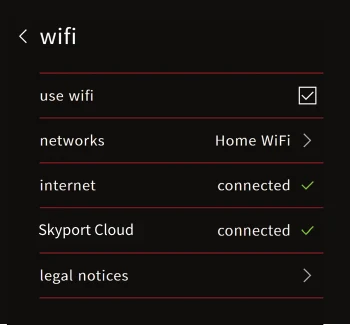
Tap Wi-Fi and make sure the Use Wi-Fi box is checked.
Step 4
Choose your network
Tap Networks, pick your home network from the list and enter the password when asked. If your network is not listed, search again, and move the router closer if the signal is weak.
Step 5
Confirm the connection
A status screen shows when the thermostat has an internet connection and a cloud connection. If it reaches the internet but not the cloud, restart the thermostat. Our restart guide shows how.
Step 6
Get your pairing code
Go back to Settings and tap Account. The thermostat shows a code. The code expires after 15 minutes, and you can ask for a new one at any time.
Step 7
Set up the SkyportHome app
Download SkyportHome from the App Store or Google Play and create an account. Add your home location when the app asks, then enter the code from the thermostat.
Step 8
Test it
Change the temperature in the app and watch the thermostat respond. Give the thermostat a room name so it is easy to find, especially if you add voice control later.
Tips for a Good Connection
- Set the thermostat up on your regular home network, not a guest or public network that needs a sign-in page.
- If you changed your router or Wi-Fi password, repeat steps 3 and 4 to join again.
- The Amana Home and Daikin One Home apps were merged into SkyportHome, so use SkyportHome for new setups.
- After it is online the thermostat can install software updates on its own.
When to Call Us Instead
Most connection problems are the router or the password. Call if you see these.
- The thermostat will not stay connected after a restart and a fresh password.
- Your Wi-Fi works everywhere else in the house but not at the thermostat.
- You see an error or service notification on the thermostat screen.
- You need help with a new thermostat install or an app account. Call Amana thermostat support at 855-402-7587, or call us at (847) 224-2420.
Wi-Fi and App Questions
Why will my Amana thermostat not connect to Wi-Fi?
Check that the router is password protected, that the password is correct and that the router supports 2.4 GHz. Move closer to the router if the signal is weak, restart the thermostat, then join the network again.
Do I need Wi-Fi for the thermostat to work?
No. The thermostat controls your heating and cooling without Wi-Fi. Wi-Fi adds app control, voice control, geofencing and automatic updates.
What happened to the Amana Home and Daikin One Home apps?
They were merged into the SkyportHome app. Use SkyportHome to pair and control your Amana smart thermostat.
My pairing code expired. What do I do?
The code lasts 15 minutes. Go back to the Account screen on the thermostat to get a new one and enter it in the app.
Who supports the thermostat?
Amana thermostat support is at 855-402-7587. We are also happy to help at (847) 224-2420.
Need a Hand With Setup?
We can connect the thermostat, pair the app and show you the main screens during a visit.
See our smart thermostat installation, the Amana lineup and the Amana smart thermostat help center.
These steps are written for the Amana brand smart thermostat (model ATST-CWE-BL-A) and the SkyportHome app. Screens can vary a little with software versions. Amana is a registered trademark of Maytag Corporation or its related companies and is used under license. Rest Assured HVAC LLC installs and services Amana equipment. Amazon, Alexa, Google and Google Home are trademarks of their respective owners.