
Thermostat How-To
How to Set a Schedule on Your Amana Smart Thermostat
A schedule changes the temperature for you at the times you choose, so the house is comfortable when you are home and saves energy when you are not. This guide covers picking a mode, editing events and copying a day.
At a Glance
10 minutes
Time
Longer if you want a different schedule for each day.
Easy
Difficulty
Tap, drag and save.
One per mode
Schedules
Heat, cool and auto can each have their own.
Copy a day
Shortcut
Build one day and copy it to the rest.
Step-by-Step: Building a Schedule
Choose the mode first, because each mode keeps its own schedule.
Step 1
Choose the mode
If your system heats and cools, pick Auto, Cool, Heat or Off. Tap the mode icons beside the temperature on the home screen, or use the menu, then System Mode.

Step 2
Open the schedule
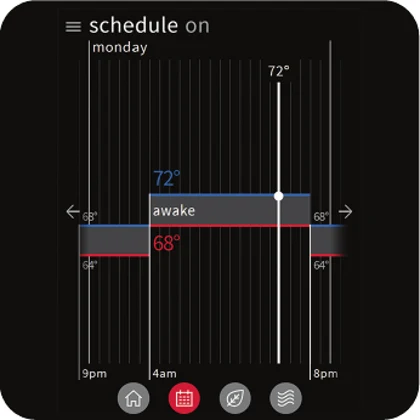
Tap the Schedule icon at the bottom of the screen.
Step 3
Start editing
Tap the menu icon in the upper left corner and choose Edit Schedule.
Step 4
Pick a day
Tap the day name in the upper left corner and choose the day you want to change.
Step 5
Add or edit an event
At the bottom of the screen, tap Add New Event or Edit Event.
Step 6
Set the time, name and action
Drag the hour and minute to set the start time, give the event a label such as Wake or Sleep, and choose the action the system should take.
Step 7
Save
Tap Save in the lower right corner.
Step 8
Copy the day
To reuse a day, select it, tap Copy Day in the lower right footer and choose the days to copy to. The day you copy from is greyed out, and the days you choose are highlighted.
Step 9
Review the schedule screen
Check the upcoming changes on the Schedule screen and adjust any event that looks off.
Schedule Ideas
- Keep it simple. A wake, away, home and sleep pattern covers most households.
- Avoid big jumps at one time. A smaller change is easier on a heat pump and avoids long recovery runs.
- Make weekends different from weekdays if your routine changes, then copy the day to the others.
- The thermostat supports a four-event daily schedule and a hold function when you want to override it.
Display Settings You May Want
These live under Settings, then Display.
- Screen savers: choose what appears when the thermostat is idle.
- Night mode: turns the display off during the schedule time you select, so a bright screen does not light the room.
When to Call Us Instead
If the schedule is set but the house does not follow it, call.
- The system does not respond when a schedule event starts.
- The schedule keeps changing or resetting.
- The time on the thermostat is wrong even though it is on Wi-Fi.
- Some rooms never reach the scheduled temperature.
Schedule Questions
How many events can I set each day?
The Amana smart thermostat has a programmable four-event schedule for each day.
Do heat and cool have separate schedules?
Yes, on systems that can heat and cool. Each mode can have its own schedule.
How do I copy one day’s schedule to other days?
Select the day, tap Copy Day and choose the days to copy to.
Can I change the schedule from the app?
Yes. The SkyportHome app shows the same schedule screens as the thermostat.
Want a Schedule That Fits Your Home?
We can help you choose temperatures and times that balance comfort and energy use.
See our smart thermostat installation, the Amana lineup and the Amana smart thermostat help center.
These steps are written for the Amana brand smart thermostat (model ATST-CWE-BL-A) and the SkyportHome app. Screens can vary a little with software versions. Amana is a registered trademark of Maytag Corporation or its related companies and is used under license. Rest Assured HVAC LLC installs and services Amana equipment. Amazon, Alexa, Google and Google Home are trademarks of their respective owners.