Thermostat How-To
How to Restart or Update Your Amana Smart Thermostat
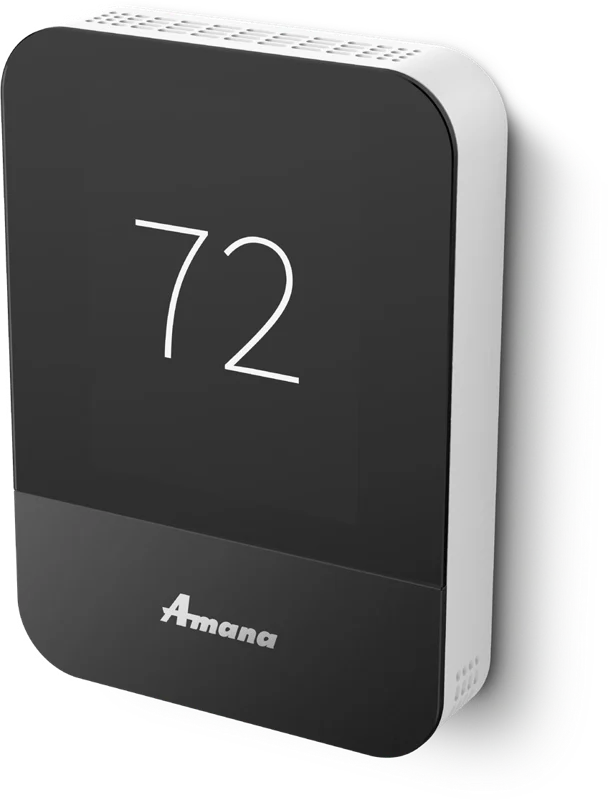
A restart clears many minor glitches, and the update check makes sure the thermostat has the latest software. Both start from the same settings screen.
At a Glance
5 minutes
Time
The thermostat reboots in a moment.
Easy
Difficulty
Three taps to reach the screen.
Nothing to remove
What you need
You do not take the thermostat off the wall.
Wi-Fi for updates
Updates
The thermostat must be online.
Step-by-Step: Restart and Update
Steps 1 to 3 are the same for both tasks.
Step 1
Open the menu
From the home screen, tap the menu icon.

Step 2
Choose Settings
Tap Settings.
Step 3
Open the Thermostat screen
Scroll down and tap Thermostat.
Step 4
To restart, tap Restart Thermostat
The thermostat shuts down and starts again by itself. You do not have to take it off the sub-base or touch the breaker.
Step 5
To update, tap Check for Update
The thermostat must be on Wi-Fi and connected to the cloud. If an update is waiting, it downloads, reboots and installs it.
Step 6
Wait, then check the screen
Give it a few minutes. When the home screen returns, check that the time, mode and temperature look right.
When a Restart Helps
- The thermostat shows an internet connection but not a cloud connection.
- The screen is slow or does not respond.
- The app and the thermostat show different information.
- You changed your router or Wi-Fi password and have rejoined the network.
When to Call Us Instead
A restart will not fix equipment problems.
- The screen stays blank or keeps rebooting.
- The thermostat shows an error or service notification again after a restart.
- Heating or cooling does not start even though the thermostat looks normal.
- You smell burning or see water near the furnace or air handler.
Restart and Update Questions
Will restarting the thermostat erase my schedule?
The restart option reboots the thermostat. If something looks wrong afterward, check your schedule and Away settings, and call us if anything is missing.
Do I have to take the thermostat off the wall to restart it?
No. Use Restart Thermostat in the Thermostat settings screen.
How do I update the thermostat software?
Open Menu, Settings, Thermostat and tap Check for Update. The thermostat has to be connected to Wi-Fi and the cloud.
Does the thermostat update itself?
When it is connected to Wi-Fi it can get software updates automatically, and you can also check by hand.
Thermostat Still Acting Up?
Call or book online and we will check the thermostat and the equipment behind it.
See our smart thermostat installation, the Amana lineup and the Amana smart thermostat help center.
These steps are written for the Amana brand smart thermostat (model ATST-CWE-BL-A) and the SkyportHome app. Screens can vary a little with software versions. Amana is a registered trademark of Maytag Corporation or its related companies and is used under license. Rest Assured HVAC LLC installs and services Amana equipment. Amazon, Alexa, Google and Google Home are trademarks of their respective owners.