
Thermostat How-To
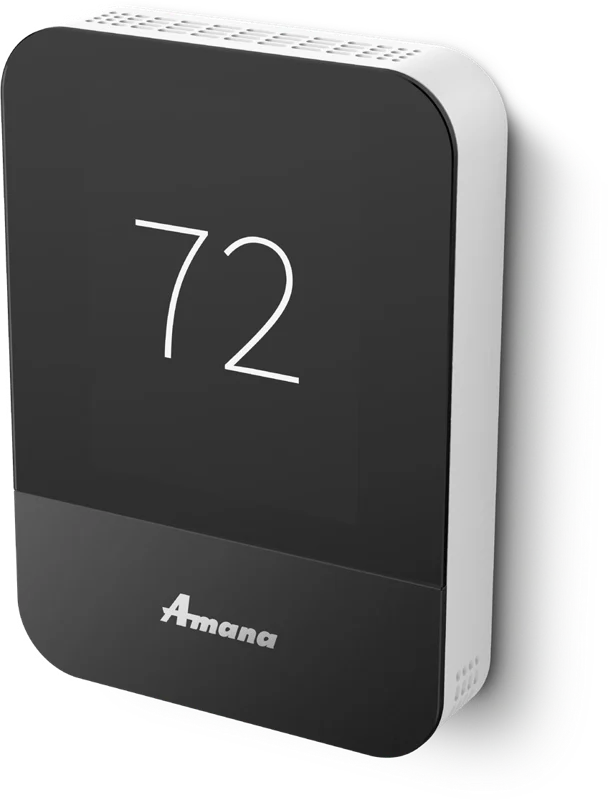
How to Connect Your Amana Smart Thermostat to Alexa or Google Home
Once your thermostat is on Wi-Fi and paired with the SkyportHome app, you can link it to Amazon Alexa or Google Home and change the temperature with your voice.
At a Glance
10 minutes
Time
Each assistant takes about five.
Easy
Difficulty
Mostly signing in and tapping Enable.
SkyportHome login
What you need
The same email and password you use in the app.
Alexa or Google
Choose one or both
Each links separately.
Step-by-Step: Voice Control Setup
Finish Wi-Fi and app pairing first. See our Wi-Fi and app guide if you have not.
Step 1
Name your thermostat
In the app or on the thermostat, give it a room name such as Kitchen or Upstairs. You will use that name when you speak.
Step 2
Alexa: open the skills list
In the Alexa app, tap More, then Skills and Games, then the search icon.
Step 3
Alexa: find and enable the skill
Search for Amana Smart Thermostat, open it and tap Enable to Use.
Step 4
Alexa: sign in
When the SkyportHome sign-in appears, enter your SkyportHome email and password.
Step 5
Alexa: discover your thermostat
After the skill is enabled, tap Discover Devices, then open the Devices tab to see the thermostat.
Step 6
Google: start the setup
In the Google Home app, tap the plus icon, choose Set Up Device, then Works with Google.
Step 7
Google: find the Amana service
Tap the search icon, type Amana Smart Thermostat and select it.
Step 8
Google: sign in
Enter your SkyportHome email and password when the sign-in window appears. The thermostat is then linked.
Step 9
Try a command
Say something simple, such as asking the assistant what the thermostat is set to, then ask it to make the room warmer or cooler.
Things You Can Say
Replace the thermostat name with your own.
Alexa
Set the temperature
Set the kitchen thermostat to 72 degrees.
Alexa
Change the mode
Set the kitchen thermostat to heat, cool, auto or off.
Alexa
Nudge it
Make the upstairs thermostat warmer, or lower it by two degrees.
Set the temperature
Set the bedroom thermostat to 70 degrees.
Change the mode
Set the bedroom thermostat to cool.
Both
Ask a question
Ask what the thermostat is set to.
When to Call Us Instead
Most voice problems come from a sign-in or the thermostat name. Call if you see these.
- The assistant cannot find the thermostat after you sign in again.
- The thermostat shows as offline in the SkyportHome app.
- The thermostat answers by voice but the system does not change.
Voice Control Questions
Does my Amana smart thermostat work with Alexa?
Yes. Enable the Amana Smart Thermostat skill in the Alexa app, sign in with your SkyportHome login and discover devices.
Does it work with Google Home?
Yes. In the Google Home app, add a device that works with Google, choose Amana Smart Thermostat and sign in with your SkyportHome login.
Which login do I use?
The email and password you use for the SkyportHome app.
Do I need Wi-Fi?
Yes. Voice control only works when the thermostat is on Wi-Fi and paired with the SkyportHome app.
Need Help Linking Your Devices?
We can set up the thermostat, the app and your voice assistant while we are there.
See our smart thermostat installation, the Amana lineup and the Amana smart thermostat help center.
These steps are written for the Amana brand smart thermostat (model ATST-CWE-BL-A) and the SkyportHome app. Screens can vary a little with software versions. Amana is a registered trademark of Maytag Corporation or its related companies and is used under license. Rest Assured HVAC LLC installs and services Amana equipment. Amazon, Alexa, Google and Google Home are trademarks of their respective owners.
