
Thermostat How-To
How to Set Up and Use the AprilAire S86WMUPR Wi-Fi Thermostat
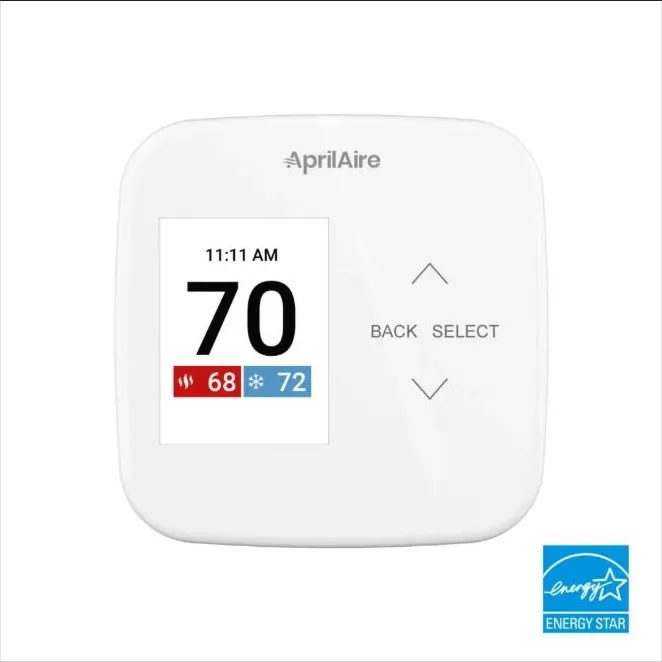
The S86WMUPR is AprilAire’s Wi-Fi thermostat with Healthy Air (IAQ) control, which means it doesn’t just run your furnace and AC, it can also run a connected AprilAire humidifier, dehumidifier, air purifier or ventilator. This guide covers connecting it to the Healthy Air app and using it day to day. If it isn’t on the wall yet, see our smart thermostat installation service.
At a Glance
About 10 minutes
App setup time
Creating an account and connecting to Wi-Fi, once it’s mounted.
Healthy Air app
What you need
The AprilAire Healthy Air app (iOS or Android) and your Wi-Fi password.
ENERGY STAR®
Certification
Certified based on actual field performance data.
Alexa & Google
Works with
Amazon Alexa, Google Assistant, and Alarm.com smart home systems.
Step-by-Step: Connecting to Wi-Fi and the App
This covers the app and Wi-Fi side only. If the thermostat isn’t mounted and wired yet, that’s a job for your installer, not covered here.
Step 1
Create an AprilAire account
Install the AprilAire Wi-Fi Thermostat app, tap Create Account, and enter a valid email and password. Add your ZIP code and time zone so weather data and the clock stay accurate.
Step 2
Add your thermostat
In the app, tap Add a Device and choose your thermostat model, then follow the prompts. On the thermostat itself, select Open Network Settings.
Step 3
Join the thermostat’s temporary network
On your phone, join the Wi-Fi network with “AprilAire” in its name, and enter the 8-digit password shown on the thermostat’s screen. Confirm any prompt to stay connected to that network.
Step 4
Connect it to your home Wi-Fi
Back in the app, choose your home network, enter its password and tap Continue. Give it up to a minute to finish connecting.
Step 5
Name the room and finish
Pick a location name (Home, or a custom name) and assign the thermostat to a room. It’s now ready to control from the app, and any connected AprilAire IAQ equipment should appear under its settings.
Daily-Use Features
Programming your schedule
Use the touchscreen’s menu-style navigation, or the app, to set heating and cooling schedules for different times of day.
Humidity and IAQ control
If you have a connected AprilAire humidifier, dehumidifier, air purifier or Fresh Air Ventilator, you can view and adjust their settings right from the thermostat or the app.
Event-based air cleaning
With a compatible AprilAire whole-house air purifier, you can trigger an on-demand cleaning cycle, for example after vacuuming or cooking.
Remote monitoring
Check and change the temperature from anywhere using the Healthy Air app once your thermostat is online.
Outdoor sensor readings
If the included 8052 outdoor sensor is installed, the thermostat uses its temperature and humidity readings to fine-tune humidifier and ventilator control.
Voice control
Link Amazon Alexa or Google Assistant in the app to change the temperature by voice.
Tips for Best Use
- Keep the Healthy Air app updated so new features and bug fixes reach your thermostat.
- If you add a new IAQ product later (a humidifier, say), pair it to the thermostat through the app’s equipment menu rather than assuming it connects automatically.
- Re-run the Wi-Fi setup steps if you ever replace your router or change its password.
- Android menu names vary by phone manufacturer, so the exact Wi-Fi screens may look a little different from the app’s instructions.
Common Mistakes to Avoid
- Trying to join your home Wi-Fi directly from the thermostat’s Add a Device screen instead of first joining its temporary “AprilAire” network from your phone.
- Setting the humidifier or dehumidifier aggressively on day one. Give it 24–48 hours at a middle setting and adjust from there.
- Confusing a 3/24-hour ventilation or air-cleaning boost with the everyday Auto setting — the boost is meant to be temporary.
- Assuming all four IAQ accessory types run at once. Only one — humidifier, dehumidifier, or ventilation — is active per installation.
Troubleshooting
- Thermostat won’t show up in the app. Make sure your phone joined the “AprilAire” temporary network and entered the on-screen password before switching to your home network, then give it up to a minute to connect.
- App isn’t syncing with the thermostat. Confirm both your phone and the thermostat have a working internet connection, then close and reopen the app.
- Connected IAQ equipment not responding in the app. Check that the equipment itself is powered and online; if it still doesn’t show up, it may need to be re-paired from the thermostat’s equipment menu.
- Touchscreen unresponsive or frozen. If the display seems stuck, a brief power cycle at the breaker usually resets it; call us if it keeps happening.
Still stuck? Call (847) 224-2420.
AprilAire S86WMUPR Questions
Do I need other AprilAire equipment for this thermostat to work?
No. It runs your furnace and AC on its own. The IAQ control features only come into play if you also have a connected AprilAire humidifier, dehumidifier, purifier or ventilator.
Can I control it without Wi-Fi?
Yes, the touchscreen works on its own for day-to-day use. Wi-Fi adds the Healthy Air app, remote access and voice assistant support.
Is the outdoor sensor required?
No, but it’s included in the box and improves how the thermostat manages humidity and ventilation, since it gives the thermostat real outdoor conditions instead of an estimate.
What if it isn’t mounted on my wall yet?
This guide only covers the app side. Mounting and wiring it means working with your HVAC system’s low-voltage wiring, which we recommend leaving to a licensed technician. See our smart thermostat installation service.
Want It Installed and Connected for You?
We’ll mount it, wire it, and get it and any IAQ equipment connected to the Healthy Air app in one visit.
See our indoor air quality services, smart thermostat installation or the How-To Hub.
This guide is general homeowner information and is not a substitute for AprilAire’s own manual or support resources. AprilAire is a registered trademark of Research Products Corporation.
