
Smart Thermostat How-To
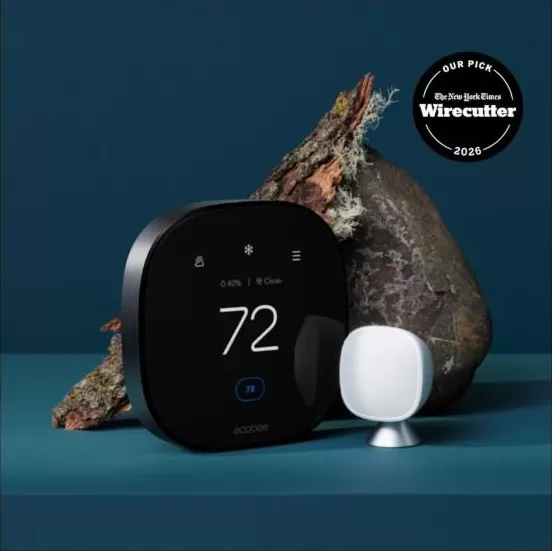
How to Set Up and Use the ecobee Smart Thermostat Premium
Once your ecobee Smart Thermostat Premium is on the wall, the rest happens in the ecobee app. This guide covers registering the thermostat, pairing the included SmartSensor, setting up schedules and comfort settings, and enrolling in ComEd’s Community Energy Savings program. If you need it mounted and wired first, see our smart thermostat installation service.
At a Glance
About 15 minutes
App setup time
Registering the thermostat and pairing the included SmartSensor, once it’s on the wall.
ecobee app
What you need
The free ecobee app (iOS or Android) and your home Wi-Fi password.
1 included
SmartSensor for rooms
Pairs in the app and helps balance temperature room to room. See the SmartSensor guide.
Alexa, Google, HomeKit
Works with
Built-in Alexa, plus Google Assistant, Apple HomeKit, Samsung SmartThings and IFTTT.
Step-by-Step: Setting Up in the ecobee App
This covers the app side only. If your thermostat is not yet mounted and wired, that part is in your installer’s instructions, not here.
Step 1
Create an ecobee account
Download the free ecobee app on your phone, create an account and name your home. You can skip the address for now, though weather data and some reports need it later.
Step 2
Connect to Wi-Fi and get your code
On the thermostat, open the gear menu and select Registration. If it asks you to connect to Wi-Fi first, do that, then it will show a 4-digit code. Codes expire after about an hour, so if yours times out, just generate a new one.
Step 3
Register the thermostat in the app
Tap Add a Device, choose your thermostat and enter the code. Finish the on-thermostat prompts for HVAC mode, your preferred comfort temperatures, country and time zone.
Step 4
Let it calibrate
Heating and cooling calibration can take up to 20 minutes. The built-in air quality sensor calibrates separately and can take up to 8 hours; neither affects your heating or cooling while it finishes.
Step 5
Pair the included SmartSensor
In the app, go to Main Menu > Sensors > Add Sensor, then scan the QR code on the sensor’s pull tab or type in the 8-digit code from its battery compartment. Pull the tab, name the sensor by room and choose which comfort settings it should join. Full placement tips are in our SmartSensor for Rooms guide.
Daily-Use Features
Comfort settings and schedules
Home, Away and Sleep are built in, and each one’s temperature, fan mode and participating sensors are editable. Build your weekly schedule by tapping an activity to change its time, or copy one day’s plan to the rest of the week.
Holds and vacation mode
Changing the temperature by hand creates a temporary hold; tap the X on the hold banner to go back to the schedule. For trips, set a vacation event with start and end dates and a min/max range to protect the house while you’re away.
Smart Home & Away
Using occupancy readings from the thermostat and any paired SmartSensors, the system relaxes the temperature automatically when everyone’s out and brings it back before you return. Turn it on under the eco+ menu.
Air quality monitoring
The home screen shows an indoor air quality indicator; tap it for more detail and alerts when it’s poor. The thermostat also reminds you when it’s time to change the air filter.
Built-in Alexa
Once the thermostat is registered, its built-in Alexa is ready to use with two-way talk. Turn its sound effects on or off under Preferences if you’d rather it stay quiet.
Temperature correction
If the display seems off from a thermometer you trust, Main Menu > Settings > Sensors > Temperature Adjustment lets you correct it by up to ±10°F. Compare against the whole-home average, not just one sensor.
Save Money with eco+ and Community Energy Savings
eco+ is ecobee’s built-in set of energy-saving features, and it’s worth turning on even if you skip everything else in this section.
eco+ is set up automatically when you register your thermostat, and you can fine-tune it any time under the eco+ menu. Its features include Smart Home & Away, Schedule Assistant (which suggests schedule changes as your routine shifts), Adjust for Humidity, and Time of Use, which shifts heating and cooling toward lower-cost hours where available.
Community Energy Savings: ComEd’s thermostat rewards program
Because we’re in ComEd territory here in Elgin and the Fox Valley, customers with a connected thermostat can enroll in ComEd’s Connected Savings program (run through the PJM grid region). On a handful of peak-demand days a year, the program makes small, brief adjustments to your thermostat, and you can opt out of any individual event from the app, a browser or the thermostat itself. In exchange, ecobee’s program advertises up to $125 a year in rewards from your energy provider, and ComEd’s own program has paid a $15 sign-up card plus $10 per year enrolled; exact amounts and terms are set by ComEd and ecobee, not by us, and are worth double-checking on their enrollment pages before you commit.
How to enroll
- In the ecobee app, confirm your home address under Manage Homes so the program can match you to ComEd’s territory.
- Still in the app, go to the eco+ menu, tap Utility, choose ComEd and confirm your provider.
- If an offer is available for your address, it will appear on screen; follow the prompts to apply and agree to the program terms.
- You can also enroll directly through ComEd’s own Connected Savings sign-up page if you’d rather start there and link the thermostat afterward.
Your comfort settings always stay in your control, and enrolling or leaving the program doesn’t change anything else about how your thermostat works.
Tips for Best Use
- Keep SmartSensors away from vents, windows, exterior walls and direct sunlight so they report accurate room temperature.
- Give each comfort setting at least one participating sensor, or it won’t factor into the average the thermostat uses.
- Comfort setting changes ease in over about 30 minutes, so don’t expect an instant jump when the schedule switches.
- Turn on eco+ and Community Energy Savings early; you can always adjust or opt out later, but you won’t earn rewards for days you weren’t enrolled.
- Re-check your Wi-Fi password if you ever change your router, since the thermostat needs it to reconnect after setup, too.
Common Mistakes to Avoid
- Skipping Wi-Fi setup and registering later — the registration code expires in about an hour, so if you wait too long you’ll need to regenerate it from the thermostat’s Registration menu.
- Forgetting to assign a new SmartSensor to a Comfort Setting. A paired sensor that isn’t assigned anywhere won’t affect temperature control.
- Entering your 5 GHz Wi-Fi network by mistake. The thermostat only connects to 2.4 GHz networks; if your router broadcasts one name for both bands, that’s fine, but a router with separate 2.4 GHz and 5 GHz names needs the 2.4 GHz one.
- Expecting the air quality reading to be accurate right away. Calibration can take up to 8 hours and doesn’t affect your heating or cooling in the meantime.
- Assuming eco+ or Community Energy Savings will override your comfort settings without warning. Both notify you before an adjustment, and you can opt out event by event.
Troubleshooting
- Registration code expired. Go back to Settings > Registration on the thermostat and generate a new one; the old one simply times out after about an hour.
- Thermostat won’t connect to Wi-Fi. Double-check the password, move the router closer if you can, and confirm your network is 2.4GHz or dual-band; some older routers’ 5GHz-only networks aren’t supported.
- SmartSensor won’t pair. Make sure you’re within range of the thermostat, re-enter the 8-digit code from the battery compartment carefully, and give it up to 3 minutes to appear in the app after pairing.
- Screen frozen or unresponsive. Press and hold the center of the screen for about 10 seconds, or pull the thermostat off its wall plate and reseat it, which reboots it without losing your settings.
- “Wiring error” message after setup. Go to Menu > Settings > Equipment > Wiring to see what the thermostat detected, and select Re-configure Equipment if something looks wrong. If that doesn’t clear it, the wiring itself may need a technician’s look.
- Alexa or voice assistant not responding. Confirm the thermostat finished registering (voice features unlock after that), and check that its sound effects/microphone haven’t been muted in Preferences.
If none of that clears it up, or the problem looks electrical rather than app-related, call (847) 224-2420.
ecobee Premium Questions
Do I need the included SmartSensor for the thermostat to work?
No. The thermostat works fine using only its own built-in sensor. The included SmartSensor for Rooms is there to even out hot and cold spots and improve occupancy detection once you pair it, but it’s optional.
Will enrolling in Community Energy Savings make my house uncomfortable?
The adjustments are small and brief, and both ecobee and ComEd let you opt out of any single event from the app, a browser or the thermostat itself. It only runs on a limited number of peak-demand days a year.
Can I control the thermostat without the app, just from the screen?
Yes. Everything from adjusting the temperature to editing schedules can be done right on the touchscreen. The app adds remote access, Apple Watch control and Home Energy Reports on top of that.
How is this different from the standard ecobee Smart Thermostat?
The Premium adds a larger touchscreen, a built-in air quality monitor with alerts, home-monitoring features like smoke alarm and freeze detection, and Alexa built in. If you’re not sure which model you have, check our smart thermostat installation page or give us a call.
What if my thermostat isn’t mounted yet?
This guide only covers the app side of setup. Mounting and wiring a thermostat means working with your HVAC system’s low-voltage wiring, which we recommend leaving to a licensed technician. See our smart thermostat installation service or call us to get it on the wall first.
Want It Installed and Set Up for You?
We’ll mount it, wire it, pair your SmartSensor and get Community Energy Savings enrolled, all in one visit.
See our smart thermostat installation service, the How-To Hub or the SmartSensor for Rooms guide.
This guide is general homeowner information and is not a substitute for ecobee’s own manual or support resources. ecobee and the ecobee logo are trademarks of ecobee Inc. Enrollment, rewards and program terms for Community Energy Savings are set by ComEd, ecobee and PJM, not by Rest Assured HVAC LLC, and are subject to change.
