
Thermostat How-To
How to Program and Use the Prostat+ PSP4272RT Thermostat
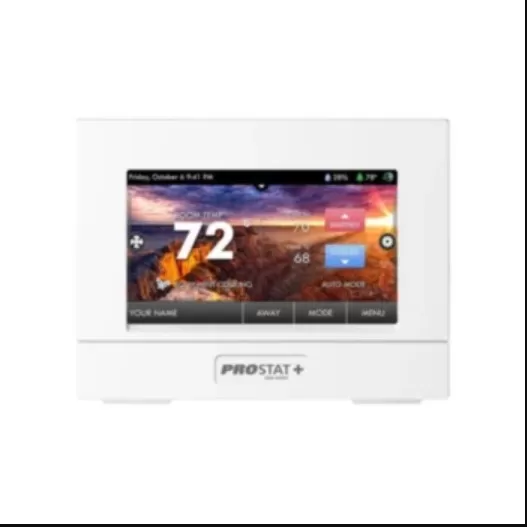
The Prostat+ PSP4272RT is a 4.3" touchscreen thermostat with built-in Wi-Fi, up to four heat and two cool stages, and a 7-day schedule with up to four time periods a day. This guide covers programming a schedule and day-to-day use. If it isn’t mounted and wired yet, that’s a job for a licensed technician.
At a Glance
4 periods a day
Schedule
7-day touchscreen programming: Morning, Day, Evening and Night periods, set by day or day group.
4 Heat / 2 Cool
Compatible systems
Conventional or heat pump systems with up to 4 heat and 2 cool stages; dual-fuel capable.
Built-in
Wi-Fi
2.4GHz connectivity for remote access and weather through the Skyport web portal and mobile app.
4.3" touchscreen
Extras
Drop-down dashboard, Home/Away switching, vacation scheduling, Smart Recovery and screen lock.
Step-by-Step: Programming Your Schedule
This covers programming the thermostat’s touchscreen itself. Setting it up on the Skyport web portal for remote access is a separate, optional step.
Step 1
Open the Schedule menu
Tap Menu on the home screen, then tap Schedule and choose Edit My Schedule.
Step 2
Choose which days to program
Tap to select one or more days as a group (for example, all five weekdays together), then tap NEXT.
Step 3
Set each time period
Choose Morning, Day, Evening or Night, then set its start time and heat and cool setpoints. Uncheck any period you don’t want running that day.
Step 4
Repeat for the rest
Tap DONE after each period, then repeat Steps 3 for the remaining periods. Program a separate day group for weekends if your routine is different then.
Step 5
Review and save
Check what you’ve set, then tap SAVE to put the new schedule into effect.
Daily-Use Features
Manual temperature changes
Tap WARMER or COOLER to adjust the setpoint any time. In Auto mode both setpoints move together; switch to Heat or Cool mode first to adjust just one.
Mode and fan control
Tap the Mode icon to cycle through Heat, Cool, Auto or Off. The Fan button toggles FAN ON (runs constantly, even in Off mode) or FAN AUTO.
Home/Away switching
Tap the Home/Away button on the home screen for a quick occupancy change without setting up a full vacation schedule.
Vacation scheduling
Go to Menu > Vacation/Away > Set Vacation Schedule to enter a start and return date/time and the mode and setpoints to use while you’re gone.
Drop-down dashboard
Tap the arrow at the top of the home screen for weather and forecast, equipment runtimes, sensor readings and alerts.
Email alerts and service reminders
Once it’s connected to Wi-Fi, it can email you about Supply Air issues, Hi/Lo Temp swings, and when a service or filter reminder is due.
Checking Wi-Fi status
Go to Menu > Wi-Fi > Wi-Fi Status to see connection status and the thermostat ID. The home-screen Wi-Fi icon also shows connection state at a glance.
Tips for Best Use
- Use day-group selection to set up a weekday schedule once, then program weekends separately if your routine differs on those days.
- Turn on Auto Screenlock (Menu > Security) with a passcode in households with curious kids or in a rental property, and write the passcode down somewhere safe.
- Check the drop-down dashboard’s Alerts screen first if anything about the system seems off.
- Use the outdoor temperature shown on the home screen as a quick sanity check that the thermostat’s sensors are reading correctly.
- Leave Smart Recovery on — it starts the system early enough that you’re already at your setpoint when a scheduled period begins, instead of just starting toward it then.
Common Mistakes to Avoid
- Adjusting Auto mode setpoints together when you meant to set heat and cool separately — switch to Heat or Cool mode first, adjust, then return to Auto.
- Leaving unused time periods checked — an enabled period you forgot about can override the schedule you meant to run.
- Turning on Auto Screenlock without writing down the passcode first.
- Expecting a 3rd or 4th heating stage to be software-configurable the way it is on the humidity-control Prostat+ PSP4273RT — the PSP4272RT’s extra heat stages are wired directly, not assigned through a settings menu.
Troubleshooting
- Blank or dim touchscreen. Check your breaker for the HVAC system first, since this model is low-voltage powered rather than battery-powered.
- Won’t connect to Wi-Fi. Confirm your network is 2.4GHz, since that’s what this thermostat supports, and check Menu > Wi-Fi > Wi-Fi Status for signal strength and connection state.
- Schedule doesn’t seem to be running. Confirm the right days and time periods are enabled (checked) under Edit My Schedule, and that you saved after making changes.
- Touchscreen is briefly unresponsive. The Screen Cleaning option under Maintenance disables touch for 15 seconds — check whether that was triggered accidentally.
Still stuck? Call (847) 224-2420.
Prostat+ PSP4272RT Questions
Does this thermostat need Wi-Fi to work?
No, it works fully on its own as a standalone programmable thermostat. Wi-Fi and the Skyport app just add remote access, weather on the dashboard, and account-based features.
Can I control humidity with this model?
No, the PSP4272RT doesn’t include humidity control or a programmable AUX output. That’s the Prostat+ PSP4273RT, which adds built-in humidification and dehumidification with reheat.
How do I lock the touchscreen?
Go to Menu > Security > Auto Screenlock. You’ll need to set a passcode first before the lock can be turned on.
What if it isn’t mounted yet?
This guide only covers programming and day-to-day use. Mounting and wiring it involves your HVAC system’s low-voltage wiring, which we recommend leaving to a licensed technician.
Want Help Programming It?
We’re happy to set up your schedule and connect it to the Skyport app while we’re already there.
See our smart thermostat installation service or the How-To Hub.
This guide is general homeowner information and is not a substitute for the manufacturer’s own manual or support resources. ProStat+ and Prostat+ are trademarks of their respective owner.
