
Thermostat How-To
How to Program and Use the Prostat+ PSP2270 Thermostat
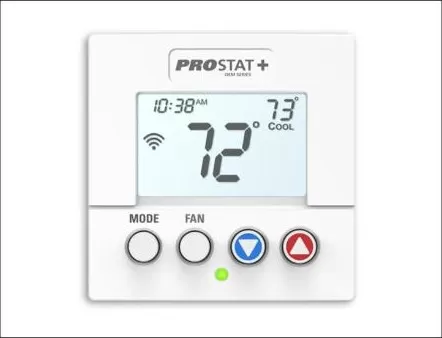
The Prostat+ PSP2270 is a 7-day programmable thermostat with up to four time periods a day and built-in Wi-Fi for remote access through the ProStat+ web portal. This guide covers programming a schedule and day-to-day use. If it isn’t mounted and wired yet, that’s a job for a licensed technician.
At a Glance
4 periods a day
Schedule
7-day programmable: Morning, Day, Evening and Night periods, each with its own setpoints.
2 Heat / 2 Cool
Compatible systems
Conventional heat/cool or heat pump systems with up to 2 heat and 2 cool stages.
Built-in
Wi-Fi
2.4GHz connectivity for remote access through the ProStat+ web portal.
Geofencing & sensors
Extras
Smart recovery, vacation mode, keypad lock and optional Wi-Fi remote sensors.
Step-by-Step: Programming Your Schedule
This covers programming the thermostat itself. Setting it up on the ProStat+ web portal for remote access is a separate, optional step covered in its own setup guide.
Step 1
Set the clock and day
Use the up and down buttons to set the current time and day of the week. If it’s connected to the ProStat+ web portal, the portal keeps the clock and Daylight Saving Time updated for you automatically.
Step 2
Open the schedule screens
Press and hold MODE and UP together to enter Time Period Programming, then use WARMER or COOLER to choose which day you’re setting.
Step 3
Program each time period
Each day has four periods — Morning, Day, Evening and Night. For each one, set its start time, whether it’s turned on, and the setpoint you want. The prompts you see depend on the system mode you’ve selected.
Step 4
Copy the day, if you want
Press UP to copy the day’s program to the next day, which saves time if your weekday schedule repeats.
Step 5
Exit and turn the program on
Press and hold MODE and WARMER together to exit programming. Then press MODE to cycle through system modes until you reach Program ON so the schedule actually runs.
Daily-Use Features
Manual temperature changes
Use WARMER and COOLER to adjust the setpoint any time. In Auto mode both setpoints move together; switch to Heat or Cool mode first if you want to adjust just one.
Fan control
The FAN button toggles constant fan operation on or off, even while the system itself is off.
Keypad lock
Press MODE, then WARMER and COOLER together while still holding MODE to lock or unlock the buttons, handy in a house with curious kids or a rental unit.
Emergency heat
Available only on heat pump systems, Emergency Heat runs the fan and backup heat together for when the heat pump needs extra help.
Checking Wi-Fi status
Hold FAN for 5 seconds, then press MODE to see the network name, signal strength, IP address and portal connection status.
Remote access and geofencing
Once connected to the ProStat+ web portal, you can check and adjust the thermostat remotely, and geofencing can help it respond automatically as you come and go.
Tips for Best Use
- Double-check that you’ve switched the thermostat to Program ON after setting up your schedule; otherwise it ignores the program you just built.
- Use the day-copy feature for a repeating weekday schedule, then program weekends separately if your routine is different then.
- Lock the keypad in households with small children or in a rental property to avoid accidental setting changes.
- If the Wi-Fi symbol shows just a dot, it means the thermostat isn’t connected to your access point; a flashing dot means it’s connected to the ProStat+ portal but working on the link.
Common Mistakes to Avoid
- Programming Auto mode setpoints together when you meant to set heat and cool separately — switch to Heat or Cool mode first, adjust, then return to Auto.
- Forgetting that Program ON only appears if the thermostat is set to programmable, and has no effect if the web portal has forced the program on.
- Skipping the copy-to-other-days shortcut and re-entering all 28 period settings (4 periods × 7 days) by hand.
- Locking the keypad and then forgetting the unlock sequence — it’s the same button combination both ways.
Troubleshooting
- Blank or dim display. Check your breaker for the HVAC system first, since this model is low-voltage powered rather than battery-powered.
- Program doesn’t seem to be running. Press MODE to confirm it’s actually set to Program ON and not stuck on a manual mode, and double-check you exited Time Period Programming correctly with MODE and WARMER held together.
- Time keeps resetting. If it’s connected to the ProStat+ web portal, the portal controls the clock; a mismatch usually clears up once the Wi-Fi connection is stable again.
- Won’t connect to Wi-Fi. Confirm your network is 2.4GHz, since that’s what this thermostat supports, and check the Wi-Fi status screen for the signal strength and connection state.
Still stuck? Call (847) 224-2420.
Prostat+ PSP2270 Questions
How many time periods can I set per day?
Up to four: Morning, Day, Evening and Night, each with its own setpoint and start time.
Do I need the ProStat+ web portal to use this thermostat?
No, it works fully on its own as a standalone programmable thermostat. The portal just adds remote access, automatic clock updates and geofencing.
Can I still adjust the temperature manually with a program running?
Yes, using WARMER and COOLER any time. Depending on how it’s configured, that manual change may hold until the next scheduled period.
What if it isn’t mounted yet?
This guide only covers programming and day-to-day use. Mounting and wiring it involves your HVAC system’s low-voltage wiring, which we recommend leaving to a licensed technician.
Want Help Programming It?
We’re happy to set up your schedule and connect it to the web portal while we’re already there.
See our smart thermostat installation service or the How-To Hub.
This guide is general homeowner information and is not a substitute for the manufacturer’s own manual or support resources. ProStat+ and Prostat+ are trademarks of their respective owner.
